
Automatic backup and cloud upload
Beyond a one-off Export backup, ReperDo can keep fresh ZIP copies on the device and optionally upload them to cloud storage you control. See also Back up your library for Replace vs Merge restore.
Local automatic backup
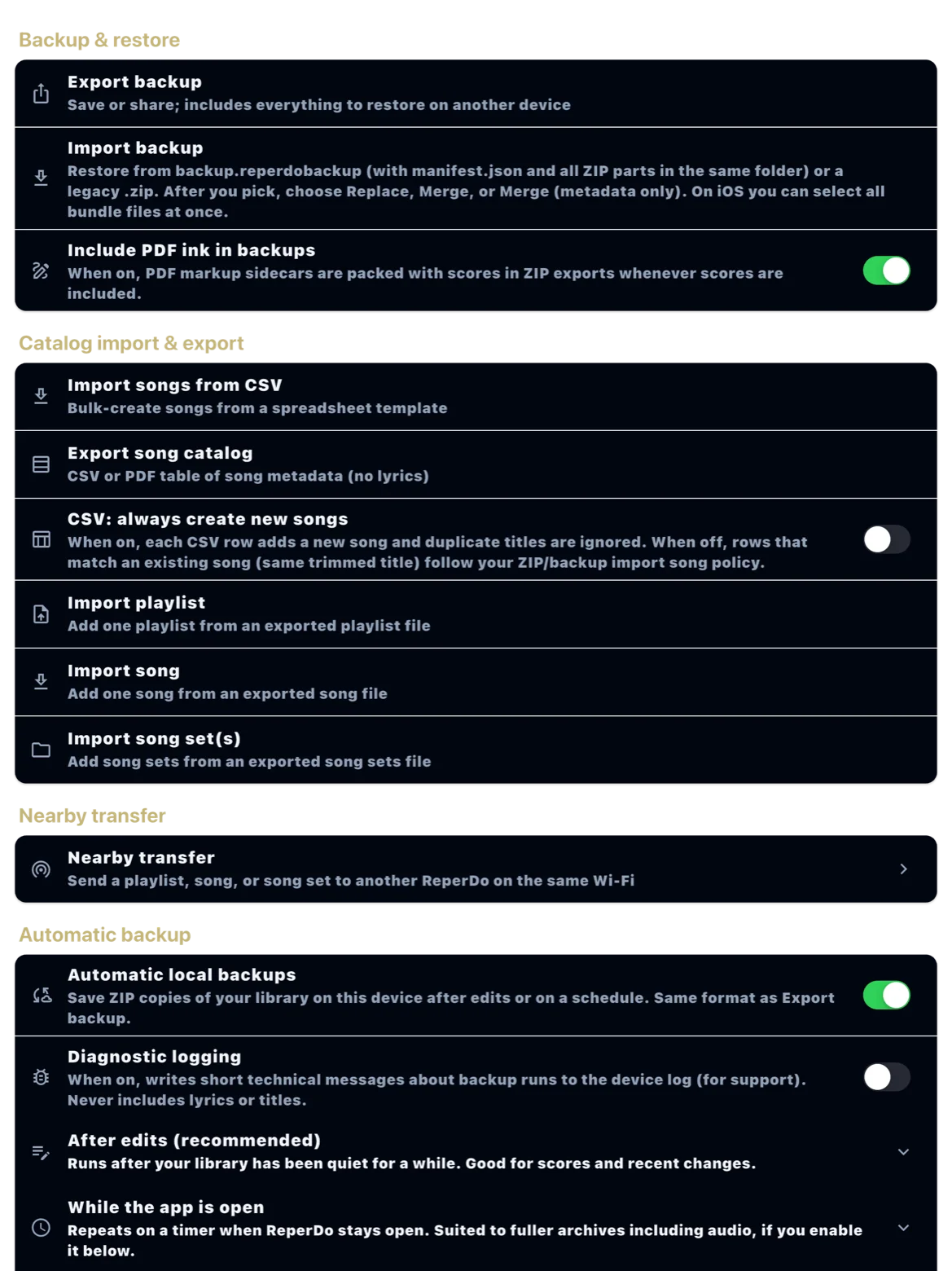
Open Settings → Data & backup and turn on Automatic backup. After library edits (and on a schedule if you enable it), ReperDo writes a new full-library ZIP on the device. That file is the same kind of backup as Export backup — your music and files, not the ReperDo Full license.
When it runs
Automatic backup runs when the library changes and, if you set a interval, on a timer while the app is active. A busy edit session may produce several ZIPs; older local copies can be pruned according to your retention setting. The newest local ZIP is always the one to restore from first.
Cloud upload
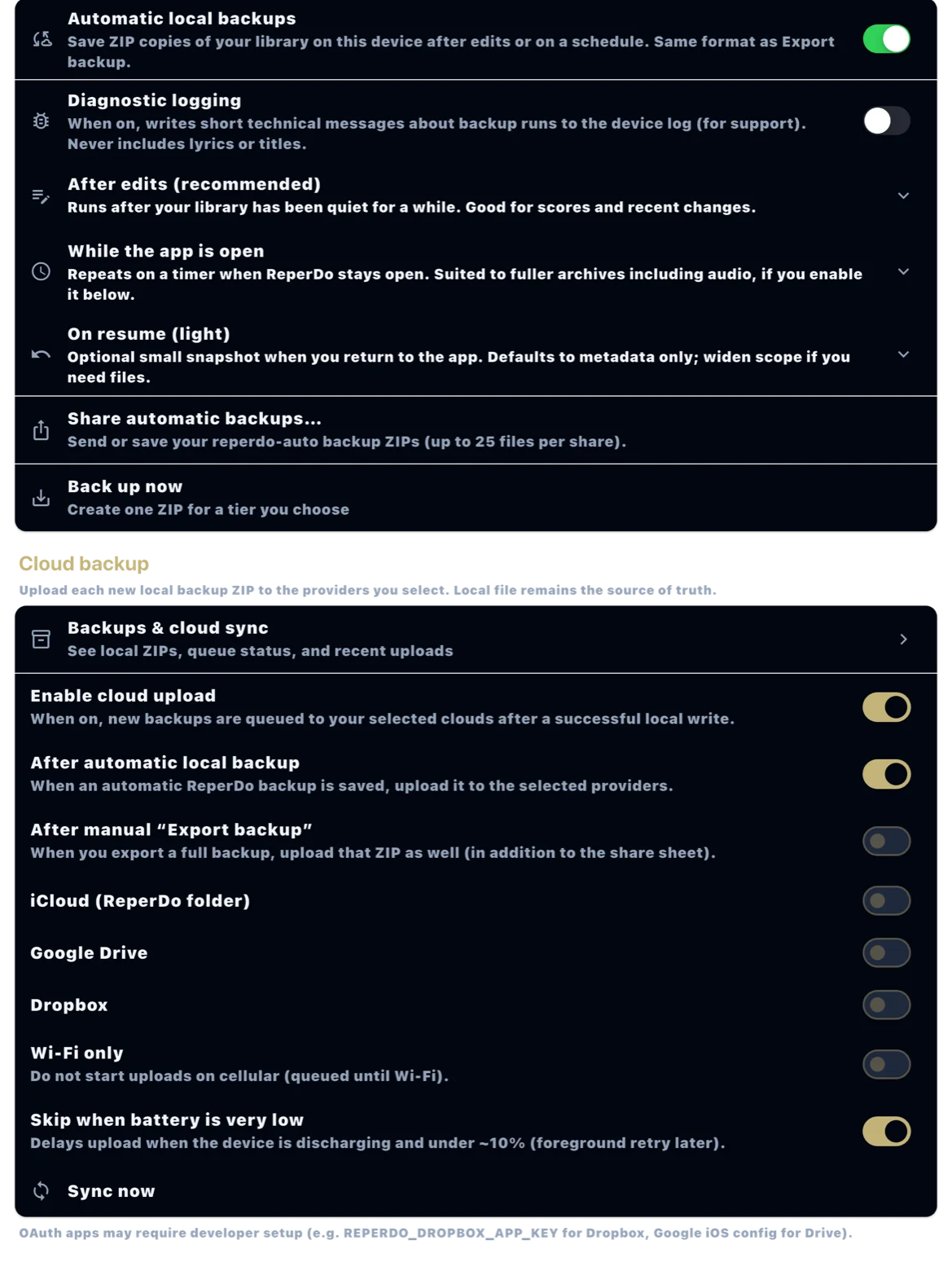
Turn on Enable cloud upload under Settings → Data & backup → Cloud backup. Use Destinations (providers + device folder name), What to upload (source filter; resume/debounce tiers stay local only), and Upload limits (Wi‑Fi only, cellular/Wi‑Fi caps, battery-aware). Sync now is on Backups & cloud sync. Files go to ReperDo/backups/<os>/<device-slug>/<snapshot>/. Skipped oversize backups can use Upload anyway once (confirm sheet). Live Performance pauses new cloud queueing.
Providers
Connect Google Drive or Dropbox on iOS and Android. iCloud is available on iOS only. Sign in through the system sheet; ReperDo nests uploads per device and snapshot. Disconnect anytime — local backups are unaffected.
Still stuck?
Confirm Automatic backup is on, storage permission is granted, and the device has free space. For cloud, check sign-in and folder access. Email support@reperdo.com or visit Support.