
Back up your library
Your repertoire lives on the device. A backup is how you keep it if the phone is lost, or move it to a new one. ReperDo does not keep a copy of your library on its own servers.
Make a backup
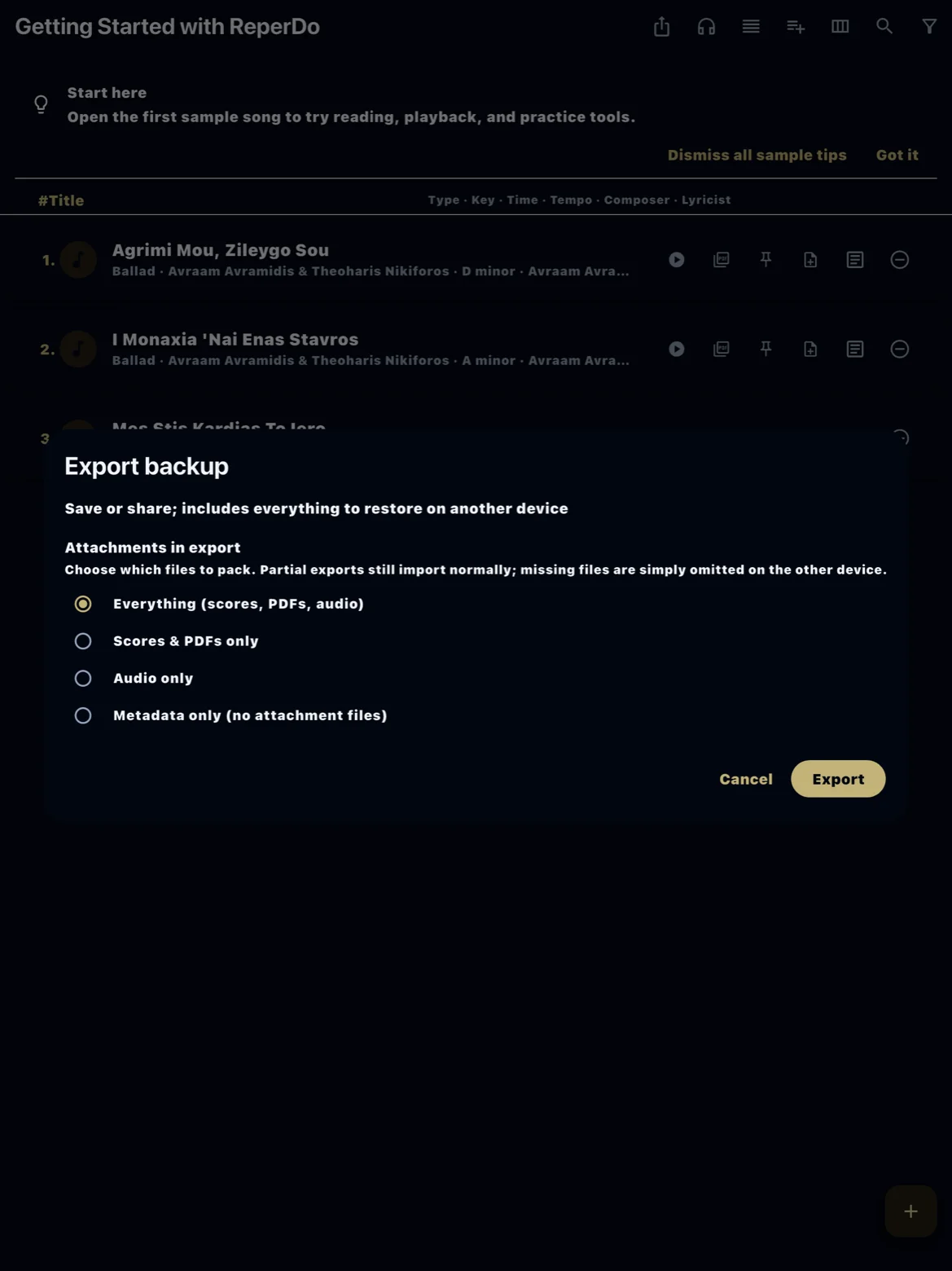
Open Settings → Data & backup. Export backup builds a full copy and lets you save or share it. Turn on Automatic backup to keep ZIP copies on the device after edits (and, if you like, on a schedule). The automatic file is the same kind of backup as Export.
Optional cloud
Cloud backup uploads each new local ZIP to providers you connect: Google Drive, Dropbox, or iCloud (iOS only). You control that folder. The file on the device stays the source of truth. Internet is required only for the upload. For schedules, retention, and provider setup, see Automatic backup and cloud upload.
Restore
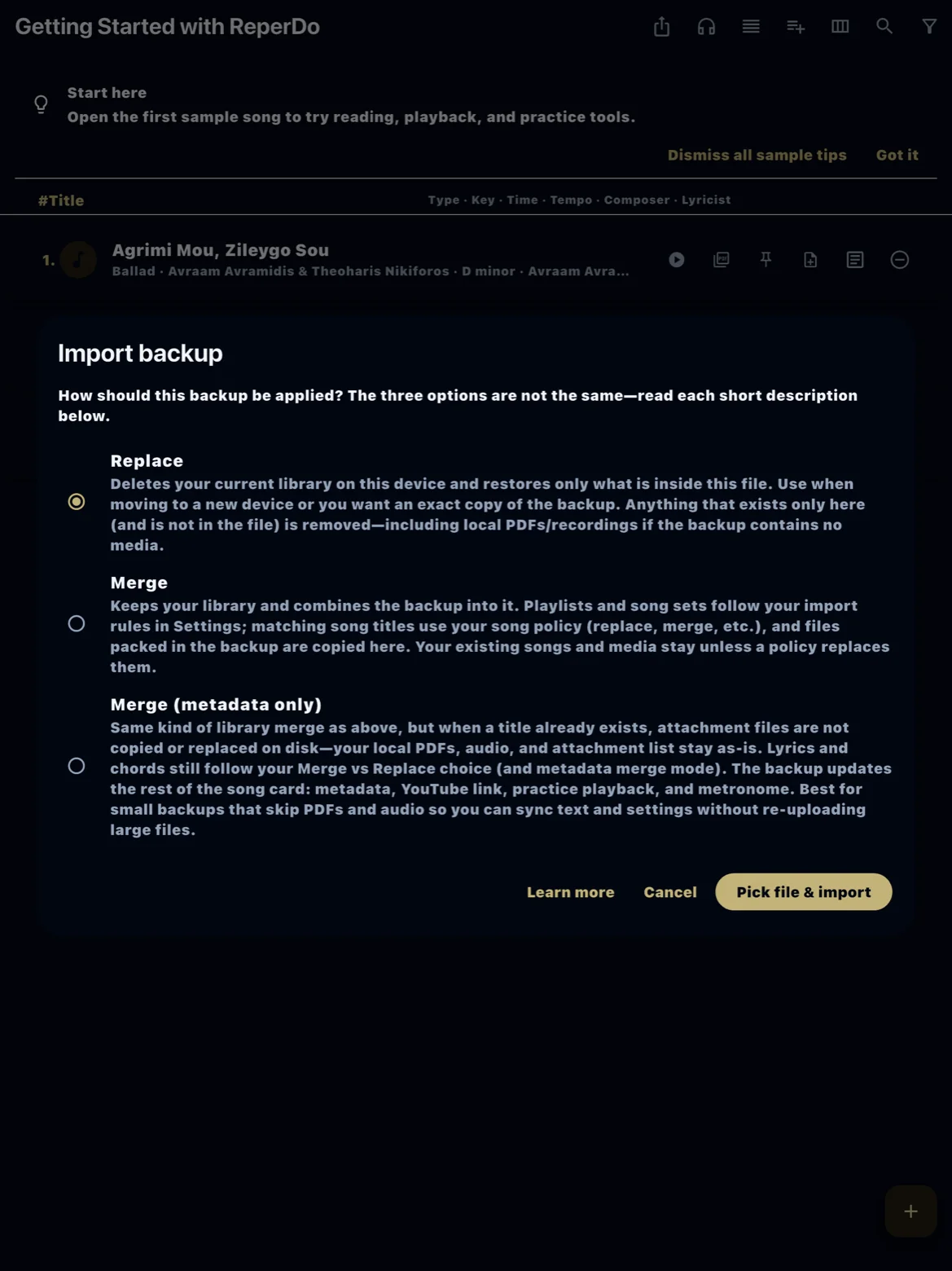
Import backup, then choose Replace (this device becomes exactly the backup), Merge (keep what is here and add what is in the backup), or Merge (metadata only) (update titles, lyrics, chords, and settings without replacing local PDFs and audio). If the backup has no media files, do not Replace — you would delete attachments the backup cannot restore. Use Merge instead.
New phone, and ReperDo Full
Restore purchases in Settings → About before you import a large library. The backup ZIP does not contain the license. If you are still on the free library and the backup has more than 12 user songs, ReperDo tries Restore purchases, then refuses the import until the store unlocks the phone. See Free library and ReperDo Full.
Still stuck?
Email support@reperdo.com or visit Support.