
Import songs from CSV
ReperDo can create many songs at once from a CSV file you edit in Excel, Numbers, or Google Sheets. The in-app FAQ covers the same rules; this page is the full guide.
Download the template
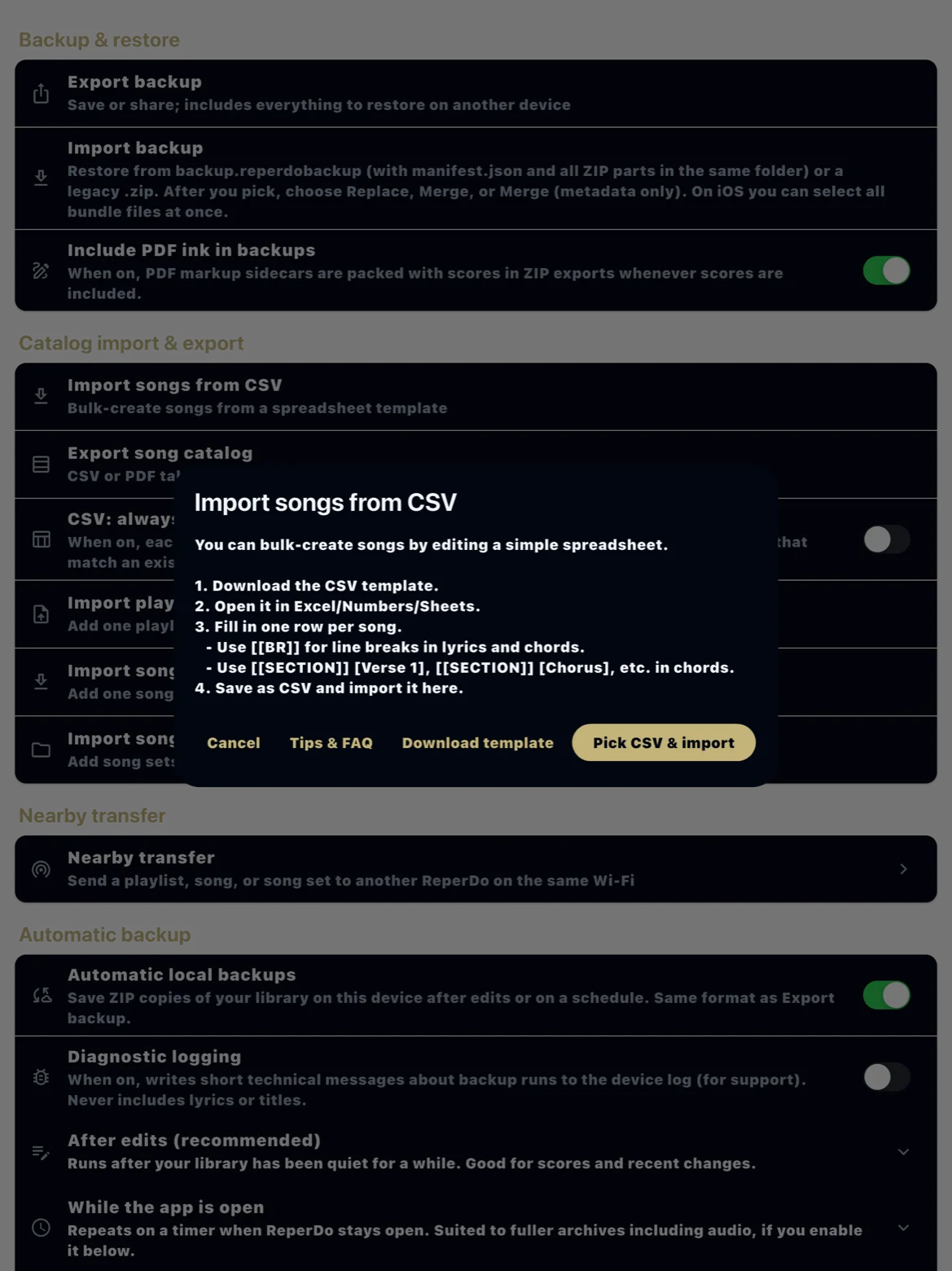
Open Settings → Data & backup → Import songs from CSV → Download template. The file lists every column ReperDo understands. Start from that template instead of inventing your own headers — unknown columns are ignored.
Required format
The first row must be headers. One of the columns must be named title (any letter case). Each following row is one song. Save as UTF-8 CSV, especially for Greek or other non-ASCII text. In Excel use Save As → CSV UTF-8. Optional columns include lyrics, chords, type, artist, key and time signatures, composer, lyricist, is_favorite, and playlist_names. Use [[BR]] inside a cell for a line break and [[SECTION]] [Verse 1] before chord blocks. If the first row looks like one cell full of semicolons (common in European Excel), ReperDo re-parses the file with semicolon as the delimiter.
Import the file
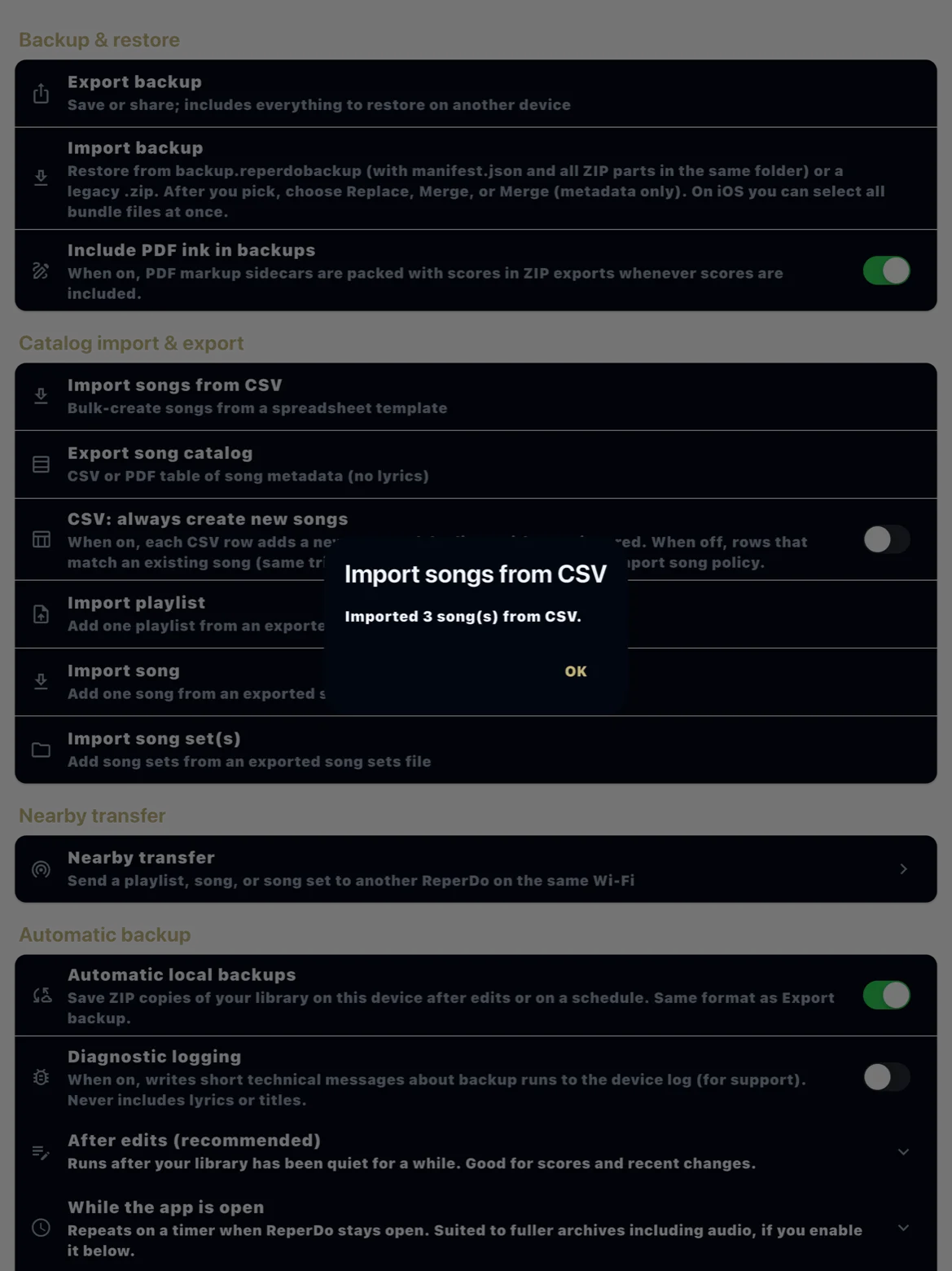
In Settings → Data & backup, choose Import songs from CSV and pick the file. When import finishes, ReperDo shows how many songs were created and how many rows were skipped (empty title or too few columns). Fatal errors — empty file, no title column, or file not found — import nothing. You may only import material you own or have the right to use.
Duplicates and re-import
By default, a row whose trimmed title matches an existing song follows your import song policy (replace, keep, merge, or new version), the same rule as ZIP and backup import. On a merge, metadata can keep your fields or prefer the incoming ones (Settings → Library). Turn on Settings → Data → “CSV: always create new songs” when every row should become a new song and skip that match. The summary counts created, kept, replaced, merged, and skipped rows.
Still stuck?
Check encoding (UTF-8), the title header, and at least one data row. Email support@reperdo.com with a redacted sample row if accents still look wrong.