
Reset app and delete library
These actions permanently delete library data on the device. They cannot be undone. ReperDo is local-first — there is no cloud undo and no ReperDo account that keeps a copy for you.
Back up first
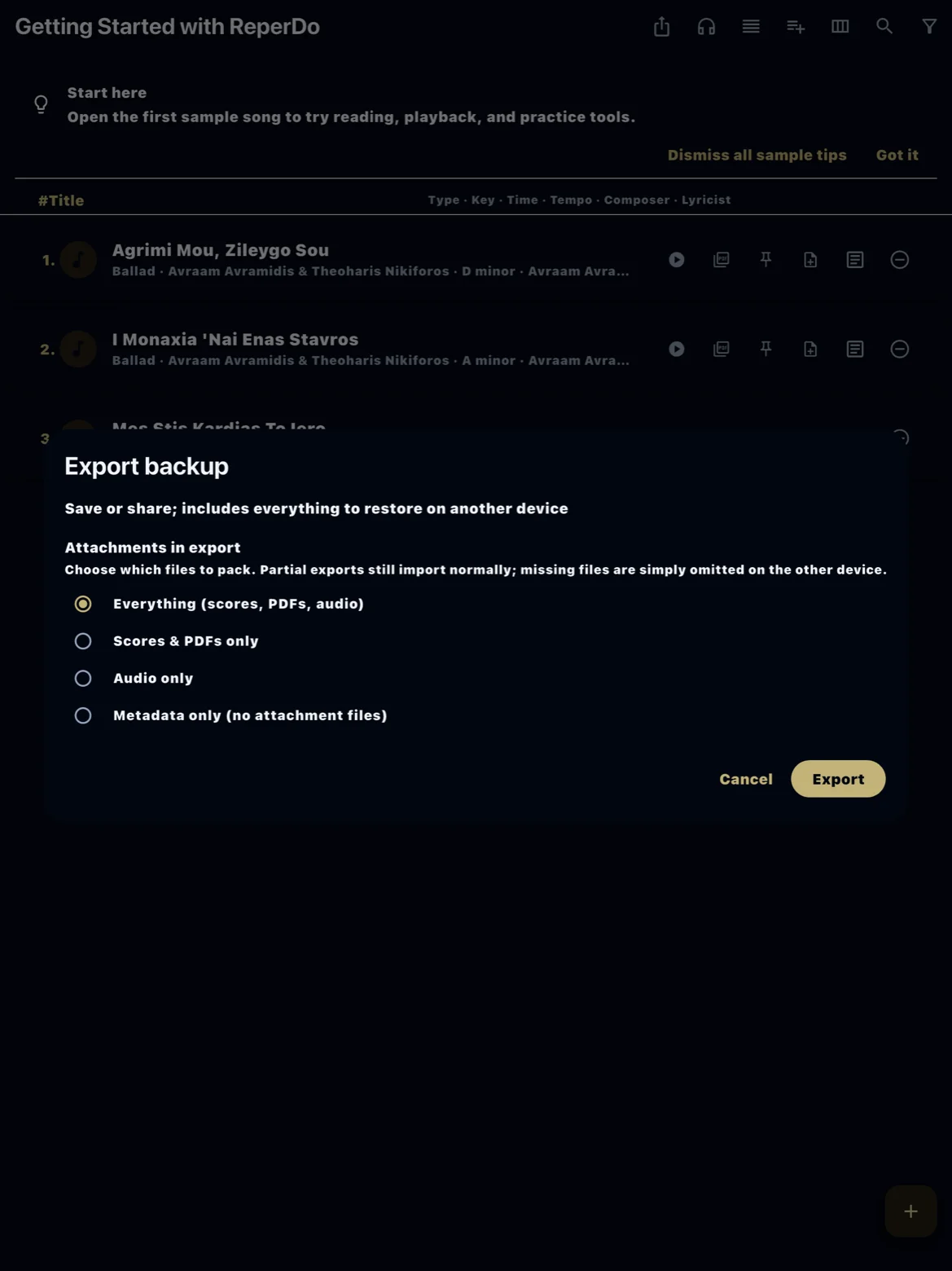
Before any destructive step, make a backup: Settings → Data & backup → Export backup. Save the ZIP somewhere safe (Files, Drive, email yourself). Restoring that ZIP is the only way to get the library back. See Back up your library. A backup does not carry ReperDo Full — use Restore purchases on a new install if needed.
Delete parts of the library
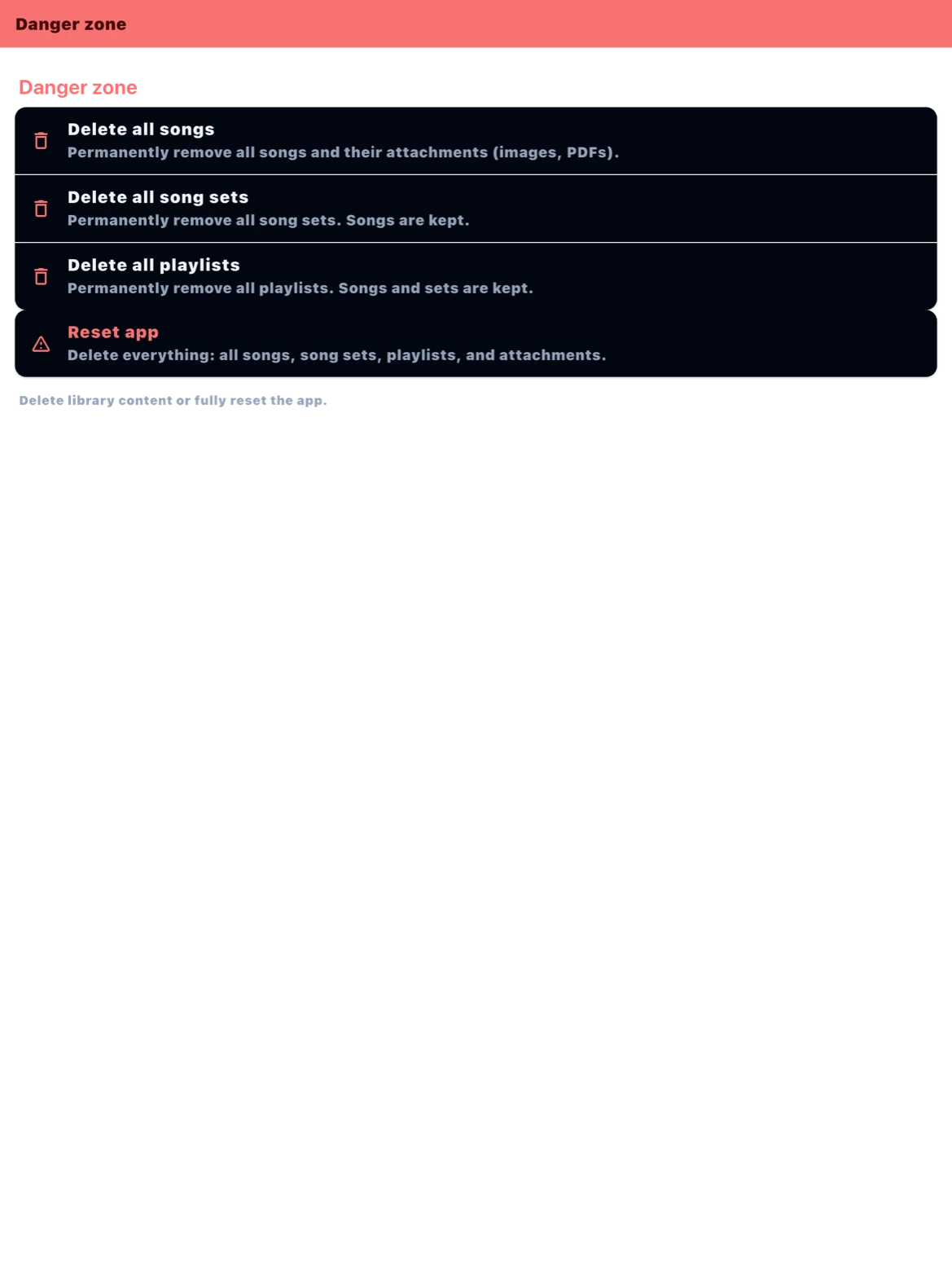
Settings → Danger zone offers separate actions: delete all songs (and attachments), delete all song sets, or delete all playlists. Playlists and sets can be removed without touching every song file. Each action asks for confirmation and shows a count.
Reset app
Reset app removes everything: all user songs, song sets, playlists, attachments, and installed sample content. Settings return toward defaults. After reset, first-run offers samples, import, or an empty library again. This is stronger than deleting songs alone.
Still stuck?
If you already reset and need data back, import your backup ZIP. If you never backed up, the data is gone. Email support@reperdo.com only for app issues — we cannot recover an un-backed-up library.