
Add a score and use it on stage
For the stand, PDF and images are the reliable path. Attach a chart to the song, pin a stage score, and open it fullscreen during the gig.
Attach a score
On the song page, add a PDF or photo from Files, scan a page (where supported), or pick from your library. You can keep multiple attachments and choose which one is pinned for the stand.

Stage score
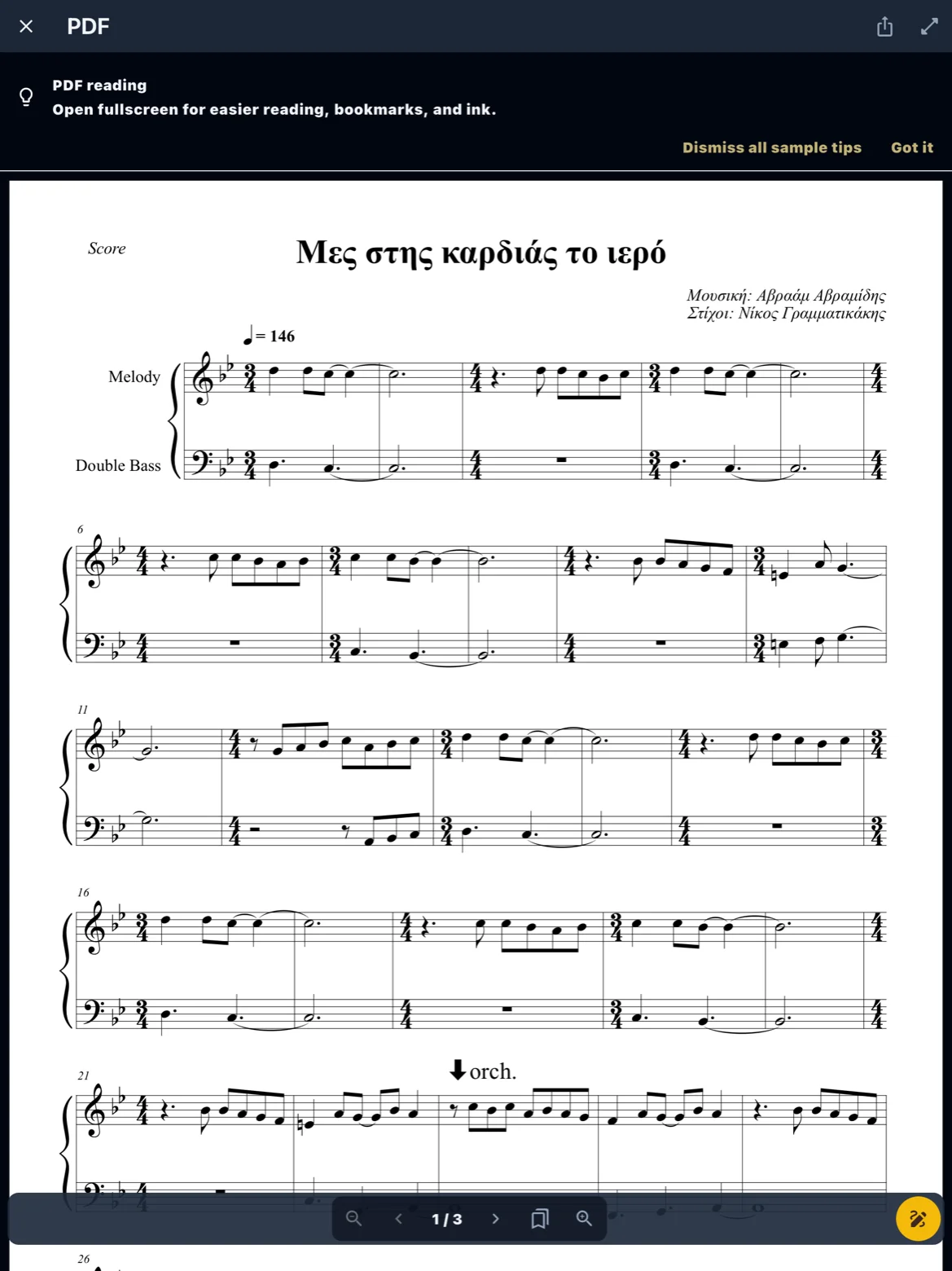
Pin one PDF or image as the stage score — the chart that opens first when you perform. Markup on PDFs and images, including music symbols, can be flattened and shared with other musicians.
Fullscreen
Tap the score to enter fullscreen. Use page turns, zoom, and invert for low light. For hands-free turns, see Page turn, invert, and pedal. MusicXML is useful for practice; for the gig, prefer PDF or a scanned page.
From a playlist
Open your setlist, step through songs, and the pinned stage score is ready on each song. Enable Live mode so nothing edits mid-show.